Quiz Entry - updated: 2026.07.30
What are the six steps for basic wireless setup on a home router?
View defaults → select network mode (802.11 standard) → configure SSID (Service Set Identifier) → select channel (use non-overlapping 1, 6, or 11) → select security mode (WPA2 (Wi-Fi Protected Access 2)/WPA3 (Wi-Fi Protected Access 3)) → set passphrase.
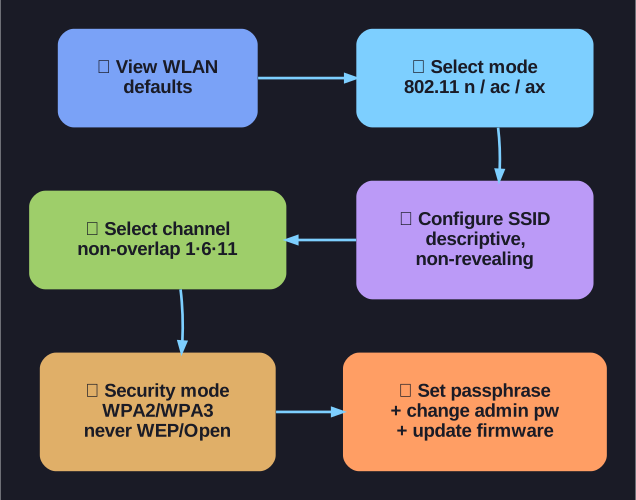
* Six-step home-router wireless setup. *
Step-by-step basic wireless setup:
| Step | Action | Key Decision |
|---|---|---|
| 1 | View WLAN (Wireless Local Area Network) defaults | Understand what needs changing |
| 2 | Change network mode | Select the 802.11 standard to use (e.g., 802.11n/ac/ax) |
| 3 | Configure the SSID | Choose a descriptive but non-revealing name |
| 4 | Select the channel | Use non-overlapping channels: 1, 6, or 11 for 2.4 GHz |
| 5 | Select security mode | Choose WPA2-Personal or WPA3 (never WEP or Open) |
| 6 | Set the passphrase | Strong password — minimum 12 characters with mixed types |
Network mode considerations:
- Mixed mode (e.g., "802.11b/g/n"): Supports older devices but reduces performance for newer ones
- N-only or AC-only: Better performance but excludes older clients
- Best practice: Use the newest standard your devices support; disable legacy modes if possible
Channel selection: If you have neighbors with Wi-Fi, use a Wi-Fi analyzer app to see which channels are congested, then choose the least-used non-overlapping channel.
Go deeper:
 List of WLAN channels (Wikipedia) — the channel/frequency tables backing the non-overlapping 1/6/11 choice.